Rules: Process connections in order
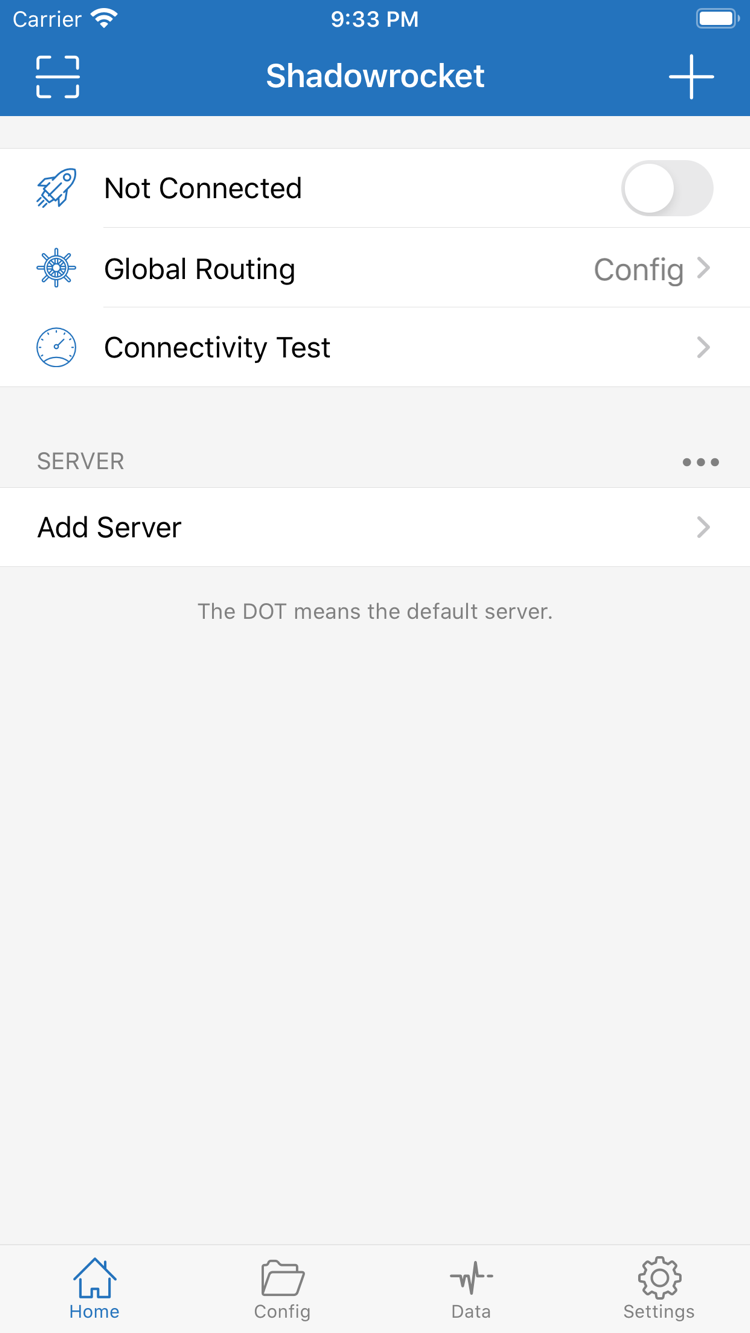
View the current configuration's Rule in Config. Rules are checked from top to bottom, and the first match determines the action, so specific domains usually belong before broader conditions. DOMAIN-SUFFIX matches domain suffixes, GEOIP matches based on address location, and FINAL handles connections that did not match earlier rules. PROXY uses the proxy policy, DIRECT connects directly, and REJECT blocks the connection. Back up before editing. Afterward, make sure Global Routing is set to Config and check the connection records to confirm which rule matched.
DOMAIN-SUFFIX,example.comPROXYGEOIP,CNDIRECTDOMAIN-KEYWORD,adsREJECT
On Demand: Check automatic connection conditions
On Demand triggers connections based on configured conditions; it does not fix server details or subscription addresses. First connect manually from Home and confirm that it works. Then open On Demand in Settings and review the network conditions and existing settings. Test the changes in each relevant network environment and check whether the connection starts or stays active as expected. If a connection returns after you turn it off manually, check the On Demand conditions as well instead of repeatedly toggling the Home switch. Options depend on the current app interface; enable them one at a time when setting this up.
# Rule example; not an On Demand condition
DOMAIN-SUFFIX,example.com,PROXY
FINAL,DIRECT
Protocols: Check Type first
Shadowrocket supports protocols including Shadowsocks, VMess, VLESS, and Trojan. In Add Server, select the Type that matches the server details you already have, then enter Host, Port, and the required authentication parameters. Fields differ by protocol and cannot be substituted for one another; check the port, encryption, TLS, and transport settings against the original details. Scan QR Code can reduce manual entry, but check the imported parameters afterward. Rules determine where traffic goes; they do not convert one server protocol to another.
# Rule example; set the connection protocol in Add Server
DOMAIN,example.com,PROXY
FINAL,DIRECT
Subscribe: Manage existing subscriptions
Subscriptions can update server entries you already have in one place. Import a link you own through the relevant Subscribe option, then check that all returned entries are present. A successful update only means content was retrieved; it does not mean every server can connect. Select an entry and test it. If nothing is returned, first check that the link is complete and still valid, and that it is accessible on your current network. Keep subscription content distinct from Config rules. Preserve any custom settings you need before updating, and do not include a full subscription link in public screenshots.
# Rule example; import Subscribe content separately
DOMAIN-SUFFIX,example.com,PROXY
FINAL,PROXY
Config: Back up before making changes
Config stores rules and related settings. After importing a file, confirm that it is the currently selected configuration. Export the original file before replacing a configuration, and note any rules you added yourself so a restore does not leave you with server entries but no routing settings. On iPhone / iPad, check the app's iCloud sync settings and status, but do not rely on sync as a substitute for a separate backup. After moving to a new device, check the configuration before testing a connection. Understand the impact of settings such as HTTPS Decryption first; do not change several sections at once to address an ordinary timeout.
[Rule]
DOMAIN-SUFFIX,example.com,PROXY
GEOIP,CN,DIRECT
FINAL,PROXY
Diagnostics: Identify the point of failure
If a connection fails, start with Connectivity Test for the selected entry, then check the address, port, authentication details, and system time. Diagnostics in Settings can provide more information. Traffic statistics in Data show changes in sent and received data; they should not be treated as a remaining service allowance. Traffic activity also does not mean a request reached its destination successfully. Check the connection result and matched rule together. Record the network environment and changes for a failed test, and adjust one condition at a time to distinguish server, rule, and local network issues.
# Check the fallback action during troubleshooting
[Rule]
DOMAIN,example.com,PROXY
FINAL,DIRECT